
Introduction
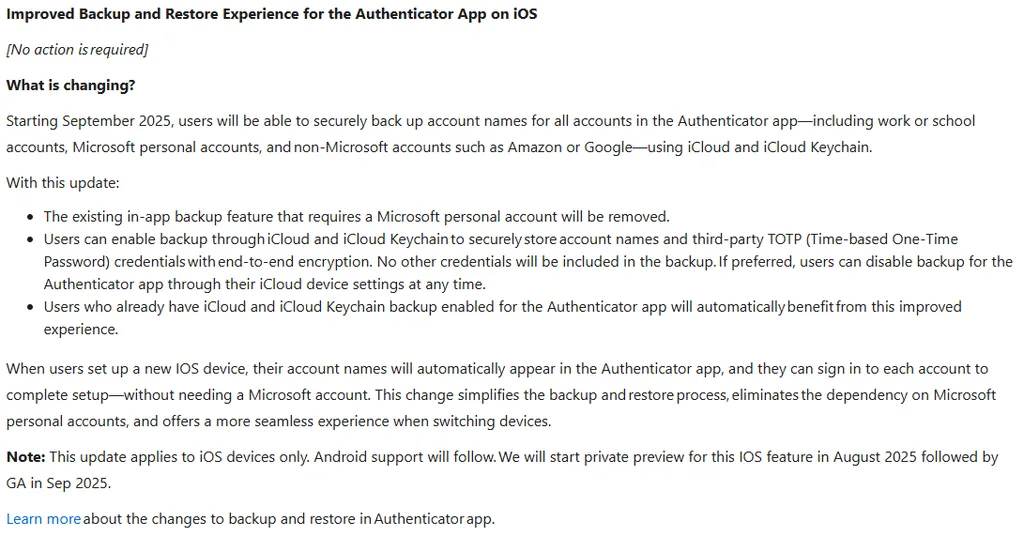
Back in September 2025, Microsoft changed how the Microsoft Authenticator app on iOS handles cloud backups. Instead of backing up credentials to a personal Microsoft account, the app shifted to using Apple iCloud and iCloud Keychain.
While Microsoft’s official notifications advised that “no action is required,” real-world testing has revealed that this isn’t entirely true. If you manage iOS devices via Microsoft Intune, your existing security configurations might be silently blocking these backups.
Discovering this after a device is wiped or lost means users lose access to their MFA registrations. This article will guide you through the implications of this change, how to check your status, and how to fix it in your tenant..
The Risk: Silently Failing Backups
This change specifically impacts users who rely on the Microsoft Authenticator app to store Multi-Factor Authentication (MFA) tokens. If your users manually installed Authenticator as an unmanaged, personal app, their backups are likely working fine.
However, if Microsoft Authenticator is deployed as a managed app via Intune, your corporate data protection policies may prevent it from interacting with Apple’s cloud services.
How To Check If Your Backups Are Active
To verify whether your device is successfully backing up credentials to iCloud, follow these steps on an IOS Device:
Open the Settings app on your iPhone.
Tap your Apple ID / Name at the top of the screen to open iCloud settings.
Select iCloud, then tap Saved to iCloud (See All).
Scroll down the list of apps to find Microsoft Authenticator.
If the toggle is OFF (or greyed out): Your backups are disabled or blocked by an administrative policy. Proceed to the fix below.
If the toggle is ON: Your credentials are backing up successfully.
How to Fix it: Updating Your Intune Configuration
If Authenticator is deployed as a managed app and iCloud sync is blocked, it is usually tied to a restriction inside an Intune Configuration Profile or an App Protection Policy (APP).
In many corporate environments, administrators historically configured the restriction “Block managed apps from storing data in iCloud” to prevent corporate data leakage or to save users from exhausting their personal iCloud storage limits. Under the new backup model, this setting completely breaks Microsoft Authenticator’s ability to save its database.

Step-By-Step Resolution
To resolve this without entirely compromising your data leakage controls, you need to adjust your iOS configuration profiles:
- Log into the Microsoft Intune Admin Center.
- Navigate to Devices > Apple Mobile > Configuration profiles.
- Locate the device restrictions profile applied to your iOS users.
- Under Configuration settings, find the Cloud and Storage section.
- Locate the setting Block managed apps from storing data in iCloud and change it to Not configured (or selectively exclude the Authenticator app if utilizing advanced App Protection Policy overrides).
- Save and deploy the updated policy.
Once the policy refreshes on the end-user devices, users will be able to toggle the iCloud backup setting back on, ensuring they won’t lose their MFA tokens during a phone replacement or accidental wipe.
In my case, Changing this setting and allowing it to sync enabled it by default, But it’s worth checking on a handful of devices.